

Overview
Working with AI often boosts productivity, but it can quickly become tedious. You might find yourself constantly copying and pasting code snippets or images into prompts. While this is manageable for analyzing single source files, it becomes cumbersome when dealing with entire projects. Manually feeding source code to a Large Language Model (LLM) is inefficient, and the LLM itself struggles to grasp the overall context and flow of the project.
To address this, researchers and developers are exploring ways for LLMs to directly interact with tools like note-taking apps (e.g., Obsidian) or reverse engineering software (e.g., IDA Pro). This approach promises a smoother and more productive workflow.
Existing solutions like OpenAI’s API, orchestration frameworks like LangChain, and Retrieval-Augmented Generation (RAG) offer some capabilities. However, these methods often suffer from limitations in extensibility, flexibility, and can be quite closed-off, requiring significant customization for specific needs. It’s reminiscent of the past when every electronic device needed its own proprietary charger. This analogy, used by Anthropic when introducing MCP, aptly highlights the need for standardization.
The Model Context Protocol (MCP) aims to solve these problems by standardizing the communication protocol between models and the tools that provide them with external data. Think of it as creating a universal standard for how AI models access and use information from various sources.
Features
Key features of MCP include:
- Open Source and Customizable: MCP is open source, allowing for modification and adaptation.
- Model Agnostic: While developed by Anthropic (creators of Claude), MCP supports various LLMs.
- Persistent, Bidirectional Communication: Enables ongoing, two-way interaction between the model and tools.
- Context Preservation: Maintains the context of the interaction across multiple turns.
- Extensibility: Designed to easily integrate new tools and capabilities.
- Ease of Use: Relatively simple to implement, even without deep development expertise.
- Security: Communication occurs at the transport layer, offering inherent security benefits.
The MCP architecture involves three main components: Hosts, MCP Clients, and MCP Servers. While understanding the specifics isn’t essential for end-users, a basic grasp is helpful.
Host
- The user-facing application (e.g., Claude Desktop, VS Code, Cursor, other AI tools).
- Manages multiple MCP Client instances.
- Determines what information to provide to the LLM.
MCP Clients
- Connect to MCP Servers.
- Represent a single interaction session.
- Route messages between the Host and Servers.
- Act as intermediaries.
MCP Servers
- Provide “tools” (capabilities) to MCP Clients.
- Can run locally or remotely.
- Deliver capabilities independently.
The term “tools” here refers to the functionalities exposed by the Servers. MCP also supports “Resources” and “Prompts,” though these are less commonly used currently. If their usage increases, dedicated documentation will likely follow.
Open-Source MCP Server with Cursor
Let’s look at using an open-source MCP server with Cursor, a popular AI-powered code editor. Smithery offers various Global MCP servers like Sequential Thinking and Github. We’ll connect Cursor to the Sequential Thinking server.
Popular open-source MCP server hubs include Cursor Directory, Glama, and Smithery.
Installation
-
Visit the Sequential Thinking server page on Smithery.
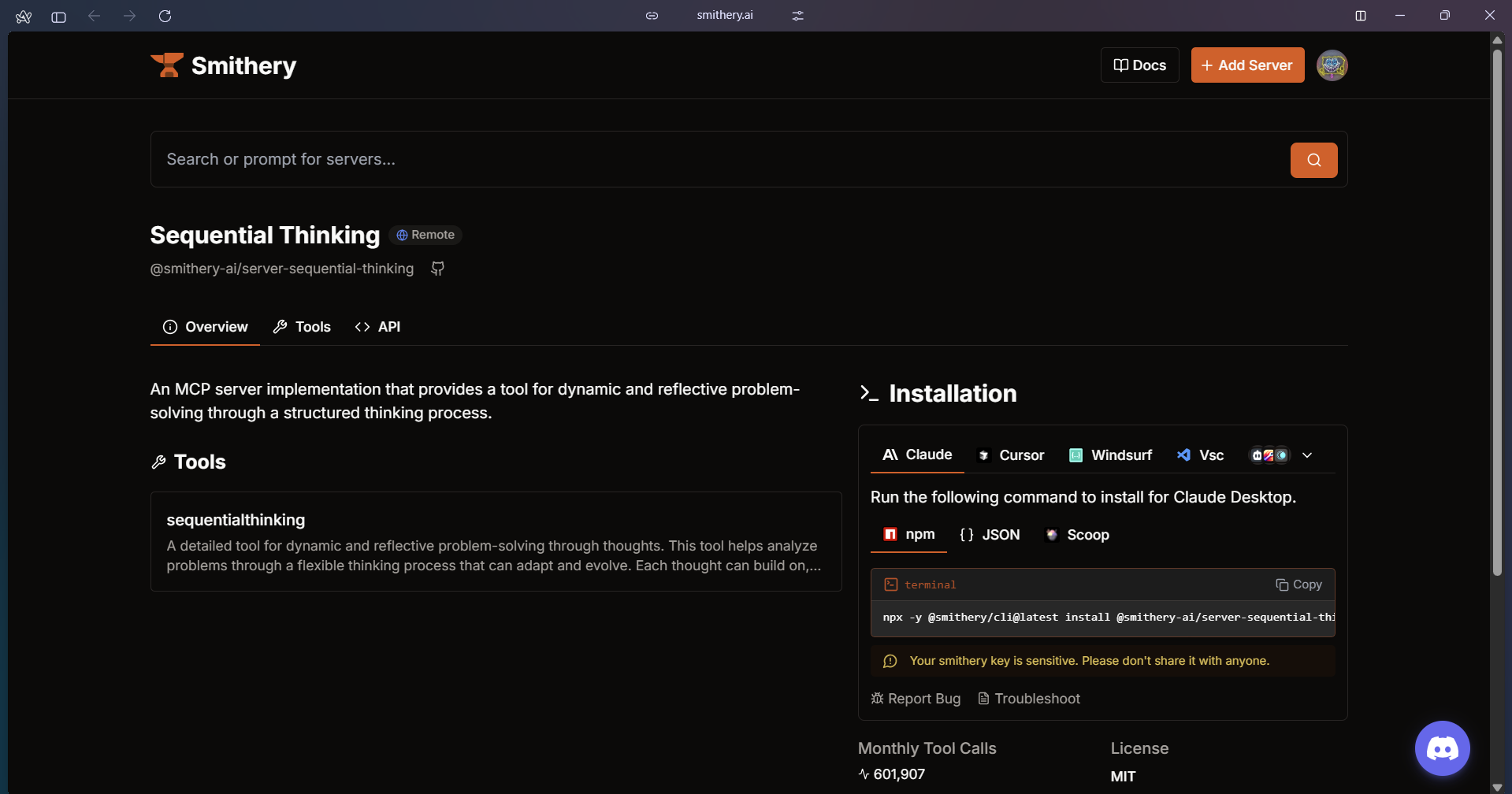
-
Install the MCP Server. Initially, I tried installing by manually adding the JSON configuration, but encountered issues.
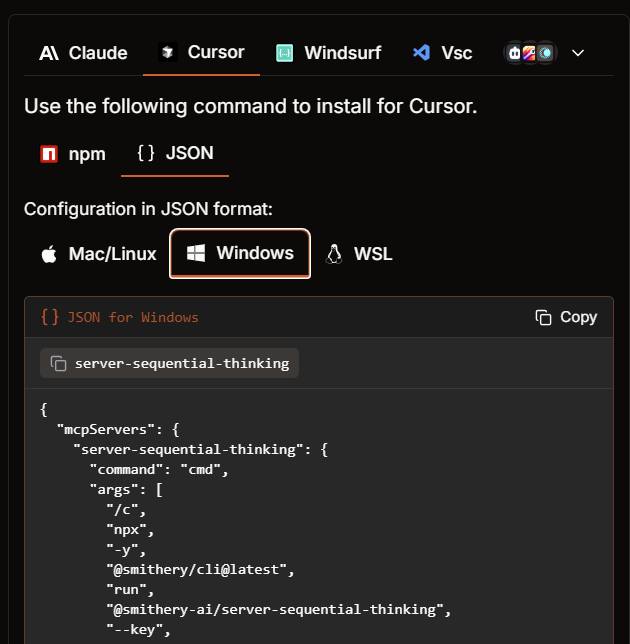
The recommended method is direct installation using
npx.2-1. Check the latest version on the Smithery page.
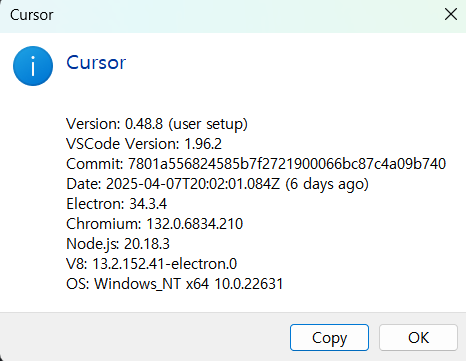
2-2. Copy the installation command.
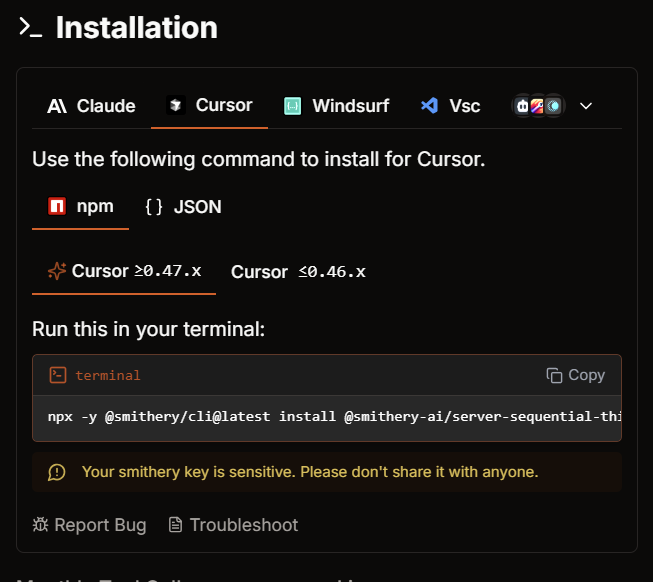
2-3. Run the command in your terminal. Note: Node.js must be installed beforehand.
$chjw1: ~ > npx -y @smithery/cli@latest install @smithery-ai/server-sequential-thinking --client cursor --key [redacted] ✔ Successfully resolved @smithery-ai/server-sequential-thinking Installing remote server. Please ensure you trust the server author, especially when sharing sensitive data. For information on Smithery's data policy, please visit: https://smithery.ai/docs/data-policy @smithery-ai/server-sequential-thinking successfully installed for cursor -
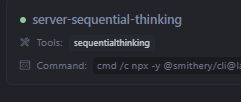
Verify recognition in the Host (Cursor). The server should now be recognized by Cursor.
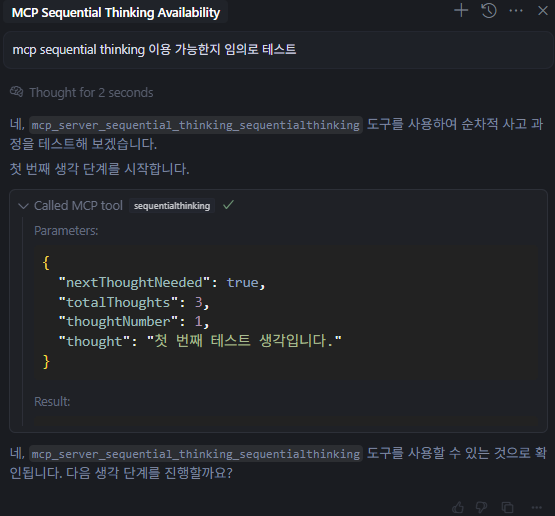
Important: Remember to restart the Host application (Cursor, Claude Desktop, etc.) whenever you modify MCP settings.
Config File
In Cursor, go to Settings (gear icon) -> MCP -> Click the blue +Add new global MCP server button in the top right. This reveals how the Host recognizes MCP Servers. You can see which command establishes communication, available tools, and manage multiple servers easily.
On Windows, the configuration file is located at C:\Users\<YourUsername>\.cursor\mcp.json.
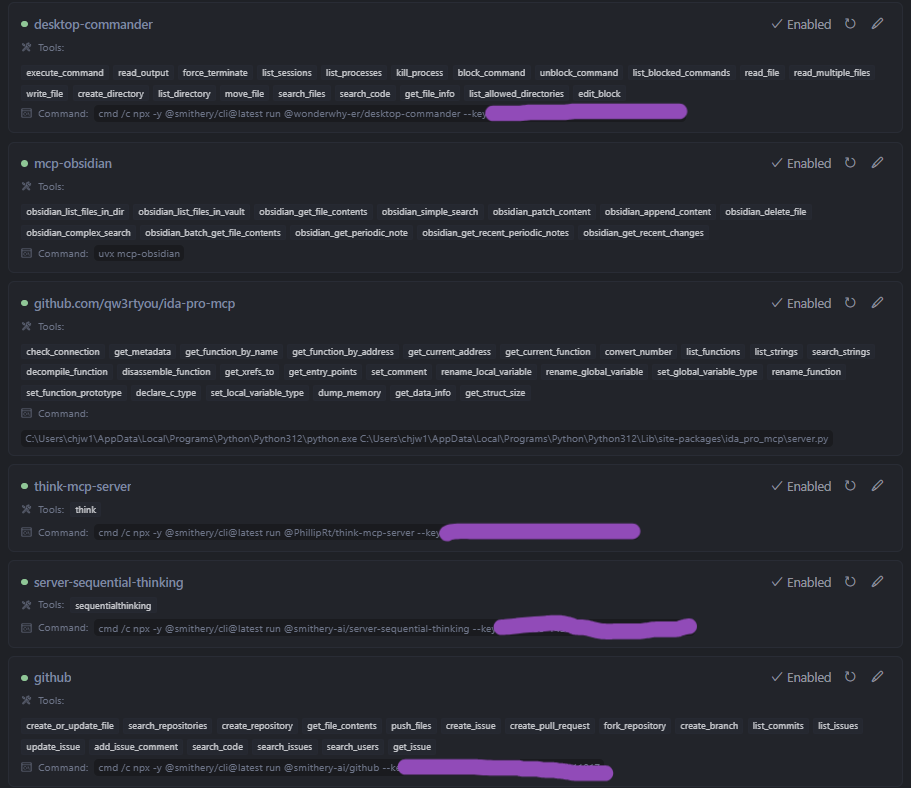
Here’s an example configuration (API keys redacted):
{
  "mcpServers": {
    "github": {
      "command": "cmd",
      "args": [
        "/c",
        "npx",
        "-y",
        "@smithery/cli@latest",
        "run",
        "@smithery-ai/github",
        "--config",
        "\"{\\\"githubPersonalAccessToken\\\":\\\"[redacted]\\\"}\""
      ]
    },
    "desktop-commander": {
      "command": "cmd",
      "args": [
        "/c",
        "npx",
        "-y",
        "@smithery/cli@latest",
        "run",
        "@wonderwhy-er/desktop-commander",
        "--key",
        "[redacted]"
      ]
    },
    "mcp-obsidian": {
      "command": "uvx",
      "args": [
        "mcp-obsidian"
      ],
      "env": {
        "OBSIDIAN_API_KEY": "[redacted]"
      }
    },
    "github.com/qw3rtyou/ida-pro-mcp": {
      "command": "C:\\Users\\chjw1\\AppData\\Local\\Programs\\Python\\Python312\\python.exe",
      "args": [
        "C:\\Users\\chjw1\\AppData\\Local\\Programs\\Python\\Python312\\Lib\\site-packages\\ida_pro_mcp\\server.py"
      ],
      "timeout": 1800,
      "disabled": false,
      "autoApprove": [
        "check_connection",
        "get_metadata",
        // ... other auto-approved tools ...
        "get_struct_size"
      ],
      "alwaysAllow": [
        "check_connection",
        "get_metadata",
        // ... other always-allowed tools ...
        "get_struct_size"
      ]
    },
    "think-mcp-server": {
      "command": "cmd",
      "args": [
        "/c",
        "npx",
        "-y",
        "@smithery/cli@latest",
        "run",
        "@PhillipRt/think-mcp-server",
        "--key",
        "[redacted]"
      ]
    },
    "server-sequential-thinking": {
      "command": "cmd",
      "args": [
        "/c",
        "npx",
        "-y",
        "@smithery/cli@latest",
        "run",
        "@smithery-ai/server-sequential-thinking",
        "--key",
        "[redacted]"
      ]
    }
  }
}
This configuration allows the AI to perform tasks like pushing projects to GitHub or documenting findings in Obsidian, creating a powerful, extensible environment.
Make my own MCP Server
While using public servers is convenient, you can also create and run your own local MCP server. The Python SDK makes this straightforward.
Development
Before starting server development, consider using UV, a Python package and version management tool. While not mandatory, it’s fast, stable, and significantly improves the development experience once learned. Many modern Python tools are adopting UV for package management, making it a worthwhile investment.
-
Create Project and Install SDK
$chjw1: ~/mcp > uv init MCP05
Initialized project `mcp05` at `C:\Users\chjw1\mcp\MCP05`
$chjw1: ~/mcp > cd .\MCP05\
$chjw1: ~/mcp/MCP05 on master ?7 > uv add "mcp[cli]"
Using CPython 3.12.6 interpreter at: C:\Users\chjw1\AppData\Local\Programs\Python\Python312\python.exe
Creating virtual environment at: .venv
Resolved 28 packages in 291ms
Prepared 27 packages in 783ms
Installed 27 packages in 129ms
 + annotated-types==0.7.0
 + anyio==4.9.0
 # ... other installed packages ...
Test the installation:
$chjw1: ~/mcp/MCP05 on master ?8 > uv run mcp
 Usage: mcp [OPTIONS] COMMAND [ARGS]...

 MCP development tools
# ... (mcp help output) ...
View the dependency tree:
$chjw1: ~/mcp/MCP05 on master ?8 > uv tree
Resolved 28 packages in 2ms
mcp05 v0.1.0
└── mcp[cli] v1.6.0
    ├── anyio v4.9.0
    │   ├── idna v3.10
    │   ├── sniffio v1.3.1
    │   └── typing-extensions v4.13.0
   # ... (dependency tree output) ...
Debugging is also possible (though not extensively tested by the author):
$chjw1: ~/mcp/MCP05 on master ?8 > .\.venv\Scripts\activate.ps1 (mcp05) $chjw1: ~/mcp/MCP05 on master ?8 > mcp dev server.py Starting MCP inspector... Proxy server listening on port 3000 🔍 MCP Inspector is up and running at http://localhost:5173 🚀 - Write Server Code
Here’s the example from the official documentation:
# server.py
from mcp.server.fastmcp import FastMCP

# Create an MCP server
mcp = FastMCP("Demo")

# Add an addition tool
@mcp.tool()
def add(a: int, b: int) -> int:
    """Add two numbers"""
    return a + b

# Add a dynamic greeting resource
@mcp.resource("greeting://{name}")
def get_greeting(name: str) -> str:
    """Get a personalized greeting"""
    return f"Hello, {name}!"
Consider using Docker for deployment:
FROM python:3.11-slim WORKDIR /app RUN apt-get update && apt-get install -y curl COPY . . RUN curl -LsSf https://astral.sh/uv/install.sh | sh ENV PATH="/root/.local/bin:${PATH}" RUN uv venv .venv && uv pip install -r pyproject.toml EXPOSE 3000 EXPOSE 5173 ENTRYPOINT ["uv", "run", "mcp", "run", "src/calc_server.py:mcp"] - Configure Host App
Below are configurations for connecting via Docker (top) and directly locally (bottom). Dockerizing can save hassle compared to configuring
mcp.jsonfor every environment."simple-calc-docker": { "command": "docker", "args": [ "run", "-i", "--rm", "-p", "3010:3000", "mcp/seminar" ] }, "simple-calc": { "command": "uv", "args": [ "--directory", "C:\\Users\\chjw1\\mcp\\MCP05", "run", "src\\calc_server.py" ] } - Run the Server (Example using Docker)
$chjw1: ~/mcp/MCP05 on master ?7 > docker image build -t mcp/seminar . [+] Building 1.3s (11/11) FINISHED docker:default => [internal] load build definition from Dockerfile 0.0s => => transferring dockerfile: 619B 0.0s # ... (docker build output) ... => => naming to docker.io/mcp/seminar 0.0s -
Verify Connection
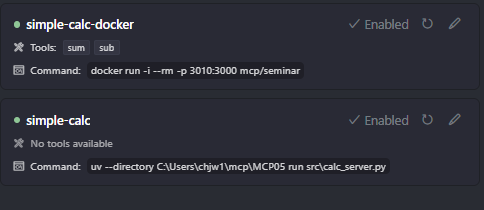
The Host should now list the tools provided by your custom server.
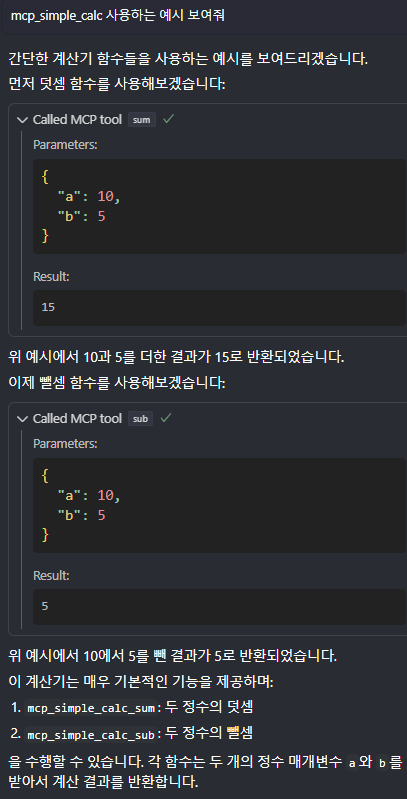
However, note that Cursor currently seems unable to fetch Resources defined in the server code.
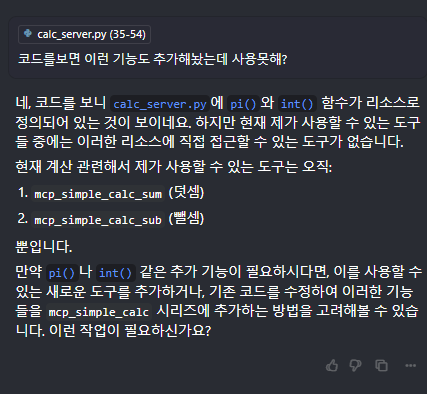
As Cursor only supports Tools at the moment, using Claude Desktop might be necessary to use Resources or Prompts.
You can install the server for Claude Desktop using the following command in your virtual environment:
mcp install .\src\calc_server.pyThis adds an entry to
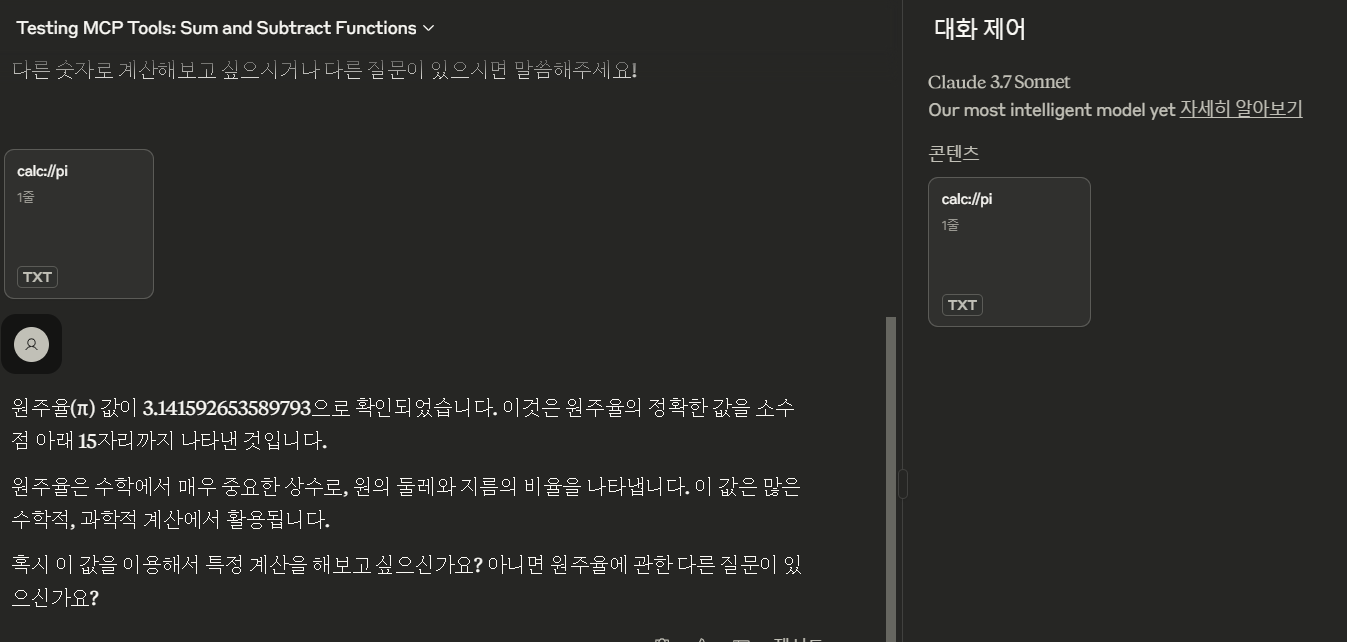
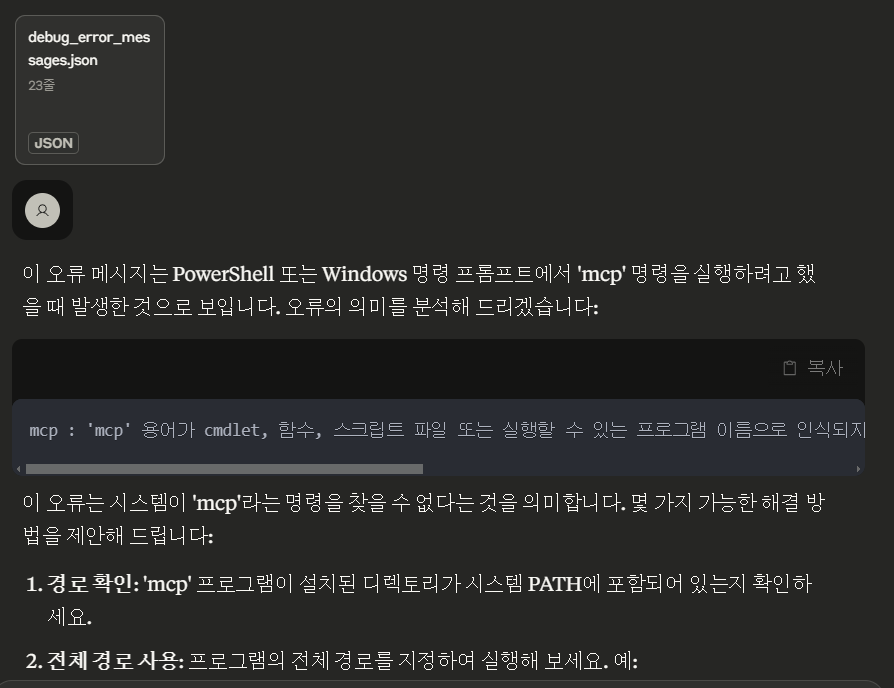
claude_desktop_config.json:"mcpServers": { "CalcMCPServer": { "command": "uv", "args": [ "run", "--with", "mcp[cli]", "mcp", "run", "C:\\Users\\chjw1\\mcp\\MCP05\\src\\calc_server.py" ] } }Now, Claude Desktop can access the defined Resources.
IDA-pro-mcp Customizing
From a security perspective, exploring MCP’s capabilities through customization is particularly interesting. A colleague recommended the IDA MCP server, which proved to be the most useful and engaging MCP application I’ve encountered.
It allows real-time symbol renaming, adding relevant comments, and performing analysis within IDA Pro via the AI assistant.
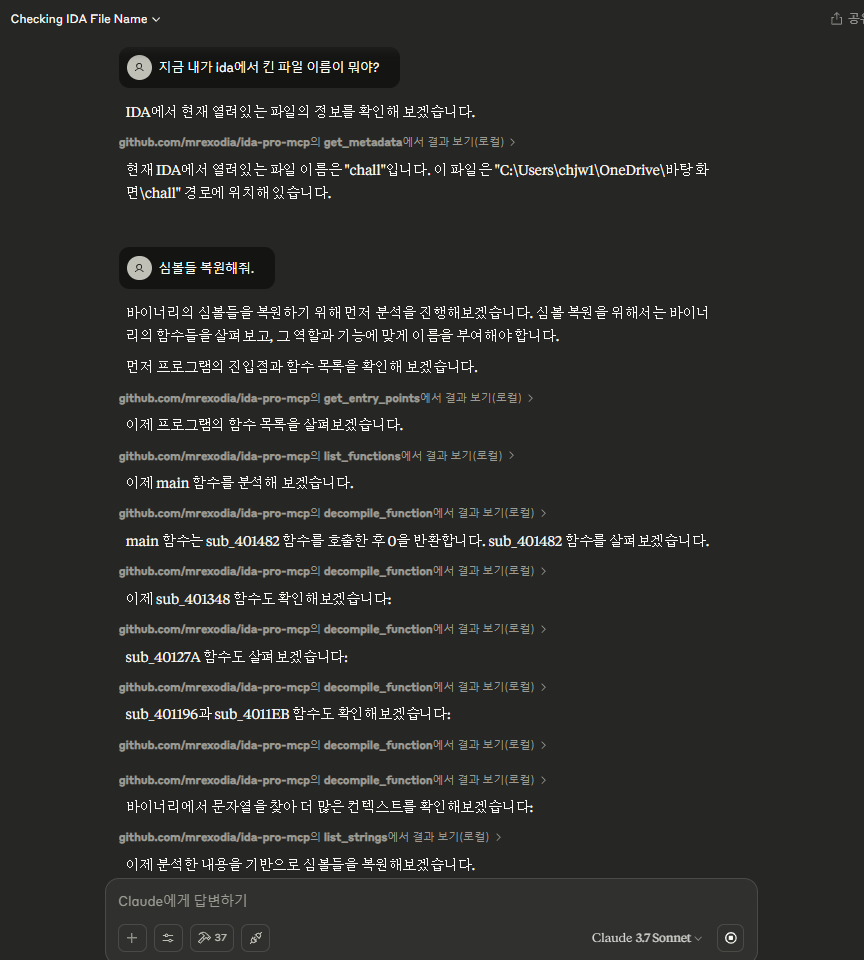
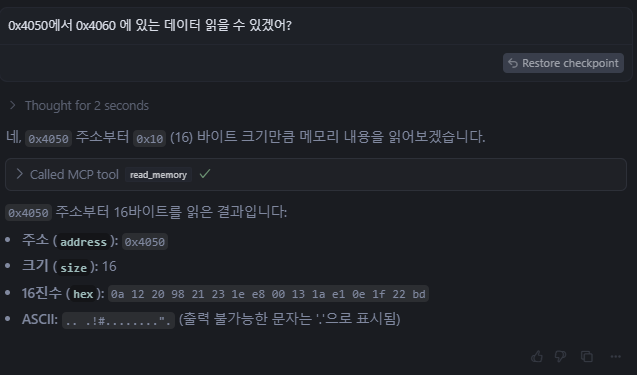
However, I encountered situations where analysis stalled because the AI didn’t know the data residing at a specific memory address. To overcome this, I implemented a memory dump function.
Available tools (before customization):
check_connection: Check if the IDA plugin is running.
get_metadata(): Get metadata about the current IDB.
get_function_by_name(name): Get a function by its name.
# ... (list of original tools) ...
set_local_variable_type(function_address, variable_name, new_type): Set a local variable's type.
Development process:
- Locate the local Python package directory.
$chjw1: ~/workspace/ida-pro-mcp on main > pip show ida-pro-mcp Name: ida-pro-mcp Version: 1.2.0 Summary: Vibe reversing with IDA Pro Home-page: Author: mrexodia Author-email: License: Location: C:\Users\chjw1\AppData\Local\Programs\Python\Python312\Lib\site-packages Requires: mcp Required-by: - Replace existing files with modified ones (e.g., copy your customized
server.py).$chjw1: ~/workspace/ida-pro-mcp on main > explorer.exe C:\Users\chjw1\AppData\Local\Programs\Python\Python312\Lib\site-packages\ida_pro_mcp\ - Reinstall the package to apply changes.
This updates
server_generated.pyand applies the modifications to the IDA Python plugin.$chjw1: ~/workspace/ida-pro-mcp on main > ida-pro-mcp --install Skipping Cline installation Config: C:\Users\chjw1\AppData\Roaming\Code\User\globalStorage\saoudrizwan.claude-dev\settings\cline_mcp_settings.json (not found) Skipping Roo Code installation Config: C:\Users\chjw1\AppData\Roaming\Code\User\globalStorage\rooveterinaryinc.roo-cline\settings\mcp_settings.json (not found) Installed Claude MCP server (restart required) Config: C:\Users\chjw1\AppData\Roaming\Claude\claude_desktop_config.json Installed IDA Pro plugin (IDA restart required) Plugin: C:\Users\chjw1\AppData\Roaming\Hex-Rays\IDA Pro\plugins\mcp-plugin.py
I forked the original repository and added the memory dump functionality to my personal GitHub.
Another inconvenience arose during development: the installation command updated claude_desktop_config.json but not Cursor’s mcp.json.
I modified the installation script to automatically update Cursor’s configuration as well:
 def install_mcp_servers(*, uninstall=False, quiet=False, env={}):
     if sys.platform == "win32":
         configs = {
             "Cline": (os.path.join(os.getenv("APPDATA"), "Code", "User", "globalStorage", "saoudrizwan.claude-dev", "settings"), "cline_mcp_settings.json"),
             "Roo Code": (os.path.join(os.getenv("APPDATA"), "Code", "User", "globalStorage", "rooveterinaryinc.roo-cline", "settings"), "mcp_settings.json"),
             "Claude": (os.path.join(os.getenv("APPDATA"), "Claude"), "claude_desktop_config.json"),
+            "Cursor": (os.path.join(os.getenv("USERPROFILE"), ".cursor"), "mcp.json"),
         }
References
- python-sdk github
- fastmcp github
- https://tiaz.dev/ai/3
- https://apidog.com/kr/blog/build-a-custom-mcp-server/
- https://tiaz.dev/ai/1
개요
AI와 함께 일하면 생산성이 확 오르긴 하는데, 은근히 손이 많이 가기도 하죠. 코드 조각이나 이미지를 프롬프트에 계속 복사, 붙여넣기 하고 있는 자신을 발견하곤 합니다. 파일 하나를 분석할 땐 그럭저럭 견딜 만한데, 프로젝트 전체를 다루기 시작하면 이게 여간 성가신 게 아니에요. 대규모 언어 모델(LLM)에 소스 코드를 일일이 떠먹여 주는 건 비효율적이고, LLM 입장에서도 프로젝트의 전체 맥락과 흐름을 잡기가 어렵거든요.
그래서 연구자와 개발자들은 LLM이 노트 앱(예: Obsidian)이나 리버스 엔지니어링 소프트웨어(예: IDA Pro) 같은 도구와 직접 상호작용하게 만드는 방법을 고민하기 시작했습니다. 이렇게만 되면 훨씬 매끄럽고 생산적인 워크플로가 열리니까요.
물론 OpenAI의 API, LangChain 같은 오케스트레이션 프레임워크, 검색 증강 생성(RAG) 같은 기존 해법도 어느 정도는 이 일을 해냅니다. 다만 확장성, 유연성에서 한계가 있고, 꽤 폐쇄적이라 내 상황에 맞추려면 손볼 게 많은 경우가 많죠. 이건 마치 예전에 전자 기기마다 전용 충전기를 따로 챙겨야 했던 시절과 비슷합니다. Anthropic이 MCP를 소개하며 든 이 비유가, 표준화가 왜 필요한지를 참 잘 짚어 주더군요.
Model Context Protocol(MCP)은 모델과, 그 모델에 외부 데이터를 물어다 주는 도구 사이의 통신 프로토콜을 표준화해서 이 문제를 풀려는 시도입니다. AI 모델이 온갖 출처의 정보에 접근하고 활용하는 방식에 “공용 규격”을 하나 만들어 주는 거라고 생각하면 됩니다.
특징
MCP의 주요 특징은 이렇습니다.
- 오픈 소스 & 커스터마이징 가능: 오픈 소스라 얼마든지 뜯어고쳐 쓸 수 있습니다.
- 모델 비종속(Model Agnostic): Anthropic(Claude 제작사)이 만들었지만, 다양한 LLM을 지원합니다.
- 지속적, 양방향 통신: 모델과 도구가 끊김 없이 양방향으로 주고받을 수 있게 해줍니다.
- 맥락 보존: 여러 턴에 걸쳐 상호작용의 맥락을 계속 이어 갑니다.
- 확장성: 새로운 도구와 기능을 쉽게 끼워 넣도록 설계됐습니다.
- 사용 편의성: 깊은 개발 지식 없이도 비교적 쉽게 구현할 수 있습니다.
- 보안: 통신이 전송 계층(transport layer)에서 이뤄져 본질적인 보안 이점이 있습니다.
MCP 아키텍처는 크게 세 조각으로 나뉩니다. 바로 Host, MCP Client, MCP Server인데요. 최종 사용자가 시시콜콜 다 알 필요는 없지만, 기본 개념 정도는 잡고 가면 좋습니다.
Host
- 사용자를 마주하는 애플리케이션(예: Claude Desktop, VS Code, Cursor, 기타 AI 도구)
- 여러 MCP Client 인스턴스를 관리한다
- LLM에 어떤 정보를 넘길지 결정한다
MCP Client
- MCP Server에 연결한다
- 하나의 상호작용 세션을 나타낸다
- Host와 Server 사이에서 메시지를 라우팅한다
- 중개자 역할을 한다
MCP Server
- MCP Client에 “도구(tool, 기능)”를 제공한다
- 로컬이든 원격이든 실행할 수 있다
- 기능을 독립적으로 전달한다
여기서 “tool”은 Server가 바깥으로 내놓는 기능들을 가리킵니다. MCP는 “Resource”와 “Prompt”도 지원하는데, 아직은 상대적으로 덜 쓰이죠. 쓰임새가 늘어나면 전용 문서도 뒤따라 나올 겁니다.
Cursor로 오픈 소스 MCP 서버 써 보기
인기 있는 AI 코드 에디터 Cursor에서 오픈 소스 MCP 서버를 붙여 보겠습니다. Smithery에는 Sequential Thinking, Github를 비롯한 다양한 Global MCP 서버가 준비돼 있는데요. 여기서는 Cursor를 Sequential Thinking 서버에 연결해 볼게요.
오픈 소스 MCP 서버를 모아 둔 허브로는 Cursor Directory, Glama, Smithery 정도가 유명합니다.
설치
-
Smithery의 Sequential Thinking 서버 페이지에 접속한다.
-
MCP 서버를 설치합니다. 처음엔 JSON 설정을 손으로 직접 추가해 설치하려 했는데, 자꾸 말썽이 나더라고요.
권장하는 방법은
npx를 이용한 직접 설치입니다.2-1. Smithery 페이지에서 최신 버전을 확인합니다.
2-2. 설치 명령을 복사합니다.
2-3. 터미널에서 명령을 실행합니다. 참고: Node.js가 미리 깔려 있어야 해요.
$chjw1: ~ > npx -y @smithery/cli@latest install @smithery-ai/server-sequential-thinking --client cursor --key [redacted] ✔ Successfully resolved @smithery-ai/server-sequential-thinking Installing remote server. Please ensure you trust the server author, especially when sharing sensitive data. For information on Smithery's data policy, please visit: https://smithery.ai/docs/data-policy @smithery-ai/server-sequential-thinking successfully installed for cursor -
Host(Cursor)가 서버를 잘 인식하는지 확인합니다. 이제 Cursor에 서버가 잡혀야 정상이에요.
중요: MCP 설정을 바꿀 때마다 Host 애플리케이션(Cursor, Claude Desktop 등)을 재시작하는 것, 꼭 잊지 마세요.
설정 파일
Cursor에서 Settings(톱니바퀴 아이콘) -> MCP -> 우측 상단의 파란 +Add new global MCP server 버튼을 눌러 봅니다. 여기를 열어 보면 Host가 MCP 서버를 어떻게 인식하는지가 한눈에 드러나는데요. 어떤 명령으로 통신이 맺어지는지, 어떤 도구를 쓸 수 있는지 확인할 수 있고, 여러 서버도 손쉽게 관리할 수 있습니다.
Windows에서는 설정 파일이 C:\Users\<YourUsername>\.cursor\mcp.json에 있습니다.
설정 예시다(API 키는 가림 처리):
{
  "mcpServers": {
    "github": {
      "command": "cmd",
      "args": [
        "/c",
        "npx",
        "-y",
        "@smithery/cli@latest",
        "run",
        "@smithery-ai/github",
        "--config",
        "\"{\\\"githubPersonalAccessToken\\\":\\\"[redacted]\\\"}\""
      ]
    },
    "desktop-commander": {
      "command": "cmd",
      "args": [
        "/c",
        "npx",
        "-y",
        "@smithery/cli@latest",
        "run",
        "@wonderwhy-er/desktop-commander",
        "--key",
        "[redacted]"
      ]
    },
    "mcp-obsidian": {
      "command": "uvx",
      "args": [
        "mcp-obsidian"
      ],
      "env": {
        "OBSIDIAN_API_KEY": "[redacted]"
      }
    },
    "github.com/qw3rtyou/ida-pro-mcp": {
      "command": "C:\\Users\\chjw1\\AppData\\Local\\Programs\\Python\\Python312\\python.exe",
      "args": [
        "C:\\Users\\chjw1\\AppData\\Local\\Programs\\Python\\Python312\\Lib\\site-packages\\ida_pro_mcp\\server.py"
      ],
      "timeout": 1800,
      "disabled": false,
      "autoApprove": [
        "check_connection",
        "get_metadata",
        // ... other auto-approved tools ...
        "get_struct_size"
      ],
      "alwaysAllow": [
        "check_connection",
        "get_metadata",
        // ... other always-allowed tools ...
        "get_struct_size"
      ]
    },
    "think-mcp-server": {
      "command": "cmd",
      "args": [
        "/c",
        "npx",
        "-y",
        "@smithery/cli@latest",
        "run",
        "@PhillipRt/think-mcp-server",
        "--key",
        "[redacted]"
      ]
    },
    "server-sequential-thinking": {
      "command": "cmd",
      "args": [
        "/c",
        "npx",
        "-y",
        "@smithery/cli@latest",
        "run",
        "@smithery-ai/server-sequential-thinking",
        "--key",
        "[redacted]"
      ]
    }
  }
}
이 설정만 갖춰 두면 AI가 프로젝트를 GitHub에 푸시하고, 알아낸 내용을 Obsidian에 정리하는 일까지 척척 해냅니다. 그야말로 강력하고 확장 가능한 작업 환경이 만들어지는 거죠.
나만의 MCP 서버 만들기
공개 서버를 갖다 쓰는 것도 편하지만, 직접 로컬 MCP 서버를 만들어 돌릴 수도 있습니다. Python SDK를 쓰면 생각보다 간단하거든요.
개발
서버 개발에 들어가기 전에, 파이썬 패키지, 버전 관리 도구인 UV 사용을 한번 고려해 보세요. 필수는 아니지만 빠르고 안정적이라, 한번 익숙해지면 개발 경험이 확 좋아집니다. 요즘 파이썬 도구들이 패키지 관리에 UV를 속속 채택하고 있어서, 배워 두면 두고두고 쓸모가 있죠.
-
프로젝트 생성 및 SDK 설치
$chjw1: ~/mcp > uv init MCP05
Initialized project `mcp05` at `C:\Users\chjw1\mcp\MCP05`
$chjw1: ~/mcp > cd .\MCP05\
$chjw1: ~/mcp/MCP05 on master ?7 > uv add "mcp[cli]"
Using CPython 3.12.6 interpreter at: C:\Users\chjw1\AppData\Local\Programs\Python\Python312\python.exe
Creating virtual environment at: .venv
Resolved 28 packages in 291ms
Prepared 27 packages in 783ms
Installed 27 packages in 129ms
 + annotated-types==0.7.0
 + anyio==4.9.0
 # ... other installed packages ...
설치가 잘 됐는지 테스트해 봅니다.
$chjw1: ~/mcp/MCP05 on master ?8 > uv run mcp
 Usage: mcp [OPTIONS] COMMAND [ARGS]...

 MCP development tools
# ... (mcp help output) ...
의존성 트리도 확인해 볼게요.
$chjw1: ~/mcp/MCP05 on master ?8 > uv tree
Resolved 28 packages in 2ms
mcp05 v0.1.0
└── mcp[cli] v1.6.0
    ├── anyio v4.9.0
    │   ├── idna v3.10
    │   ├── sniffio v1.3.1
    │   └── typing-extensions v4.13.0
   # ... (dependency tree output) ...
디버깅도 가능하다(저자가 광범위하게 테스트하진 않았음):
$chjw1: ~/mcp/MCP05 on master ?8 > .\.venv\Scripts\activate.ps1 (mcp05) $chjw1: ~/mcp/MCP05 on master ?8 > mcp dev server.py Starting MCP inspector... Proxy server listening on port 3000 🔍 MCP Inspector is up and running at http://localhost:5173 🚀 - 서버 코드 작성
공식 문서에 나오는 예시는 이렇습니다.
# server.py
from mcp.server.fastmcp import FastMCP

# Create an MCP server
mcp = FastMCP("Demo")

# Add an addition tool
@mcp.tool()
def add(a: int, b: int) -> int:
    """Add two numbers"""
    return a + b

# Add a dynamic greeting resource
@mcp.resource("greeting://{name}")
def get_greeting(name: str) -> str:
    """Get a personalized greeting"""
    return f"Hello, {name}!"
배포에는 Docker 사용을 고려하자:
FROM python:3.11-slim WORKDIR /app RUN apt-get update && apt-get install -y curl COPY . . RUN curl -LsSf https://astral.sh/uv/install.sh | sh ENV PATH="/root/.local/bin:${PATH}" RUN uv venv .venv && uv pip install -r pyproject.toml EXPOSE 3000 EXPOSE 5173 ENTRYPOINT ["uv", "run", "mcp", "run", "src/calc_server.py:mcp"] - Host 앱 설정
아래는 Docker를 통한 연결(위)과 로컬 직접 연결(아래) 설정입니다. Docker로 감싸 두면 환경마다
mcp.json을 일일이 손보는 번거로움을 덜 수 있어요."simple-calc-docker": { "command": "docker", "args": [ "run", "-i", "--rm", "-p", "3010:3000", "mcp/seminar" ] }, "simple-calc": { "command": "uv", "args": [ "--directory", "C:\\Users\\chjw1\\mcp\\MCP05", "run", "src\\calc_server.py" ] } - 서버 실행 (Docker 예시)
$chjw1: ~/mcp/MCP05 on master ?7 > docker image build -t mcp/seminar . [+] Building 1.3s (11/11) FINISHED docker:default => [internal] load build definition from Dockerfile 0.0s => => transferring dockerfile: 619B 0.0s # ... (docker build output) ... => => naming to docker.io/mcp/seminar 0.0s -
연결 확인
이제 Host에 커스텀 서버가 제공하는 도구들이 쭉 뜨면 성공입니다.
다만 현재 Cursor는 서버 코드에 정의한 Resource는 못 가져오는 것 같더라고요.
지금 Cursor는 Tool만 지원하니, Resource나 Prompt까지 써 보려면 Claude Desktop을 쓰는 게 나을 수 있습니다.
가상 환경에서 다음 명령으로 Claude Desktop용 서버를 설치할 수 있어요.
mcp install .\src\calc_server.py그러면
claude_desktop_config.json에 항목이 하나 추가됩니다."mcpServers": { "CalcMCPServer": { "command": "uv", "args": [ "run", "--with", "mcp[cli]", "mcp", "run", "C:\\Users\\chjw1\\mcp\\MCP05\\src\\calc_server.py" ] } }이제 Claude Desktop에서 정의한 Resource에 접근할 수 있습니다.
IDA-pro-mcp 커스터마이징
보안 하는 입장에서 보면, 커스터마이징으로 MCP의 능력을 직접 뜯어보는 게 특히 재미있습니다. 한 동료가 IDA MCP 서버를 추천해 줬는데요. 지금까지 써 본 MCP 응용 중 단연 가장 유용하고 흥미로웠습니다.
이걸 붙이면 AI 어시스턴트를 통해 IDA Pro 안에서 실시간으로 심볼 이름을 바꾸고, 적절한 주석을 달고, 분석까지 시킬 수 있거든요.
그런데 AI가 특정 메모리 주소에 뭐가 들어 있는지 몰라 분석이 턱 막히는 상황을 겪었습니다. 그래서 이걸 뚫으려고 메모리 덤프 기능을 직접 구현해 붙였죠.
사용 가능한 도구(커스터마이징 전):
check_connection: Check if the IDA plugin is running.
get_metadata(): Get metadata about the current IDB.
get_function_by_name(name): Get a function by its name.
# ... (list of original tools) ...
set_local_variable_type(function_address, variable_name, new_type): Set a local variable's type.
개발 과정:
- 로컬 파이썬 패키지 디렉터리를 찾는다.
$chjw1: ~/workspace/ida-pro-mcp on main > pip show ida-pro-mcp Name: ida-pro-mcp Version: 1.2.0 Summary: Vibe reversing with IDA Pro Home-page: Author: mrexodia Author-email: License: Location: C:\Users\chjw1\AppData\Local\Programs\Python\Python312\Lib\site-packages Requires: mcp Required-by: - 기존 파일을 수정한 파일로 교체한다(예: 커스터마이징한
server.py를 복사).$chjw1: ~/workspace/ida-pro-mcp on main > explorer.exe C:\Users\chjw1\AppData\Local\Programs\Python\Python312\Lib\site-packages\ida_pro_mcp\ - 변경을 반영하려면 패키지를 재설치합니다.
이렇게 하면
server_generated.py가 갱신되고, 수정 내용이 IDA 파이썬 플러그인에도 적용됩니다.$chjw1: ~/workspace/ida-pro-mcp on main > ida-pro-mcp --install Skipping Cline installation Config: C:\Users\chjw1\AppData\Roaming\Code\User\globalStorage\saoudrizwan.claude-dev\settings\cline_mcp_settings.json (not found) Skipping Roo Code installation Config: C:\Users\chjw1\AppData\Roaming\Code\User\globalStorage\rooveterinaryinc.roo-cline\settings\mcp_settings.json (not found) Installed Claude MCP server (restart required) Config: C:\Users\chjw1\AppData\Roaming\Claude\claude_desktop_config.json Installed IDA Pro plugin (IDA restart required) Plugin: C:\Users\chjw1\AppData\Roaming\Hex-Rays\IDA Pro\plugins\mcp-plugin.py
원본 저장소를 포크해서 메모리 덤프 기능을 붙인 버전을 제 개인 GitHub에 올려 뒀습니다.
개발하다 보니 또 다른 불편도 있었는데요. 설치 명령이 claude_desktop_config.json은 갱신해 주면서, 정작 Cursor의 mcp.json은 건드리지 않더라고요.
그래서 Cursor 설정까지 자동으로 갱신되도록 설치 스크립트를 손봤습니다.
 def install_mcp_servers(*, uninstall=False, quiet=False, env={}):
     if sys.platform == "win32":
         configs = {
             "Cline": (os.path.join(os.getenv("APPDATA"), "Code", "User", "globalStorage", "saoudrizwan.claude-dev", "settings"), "cline_mcp_settings.json"),
             "Roo Code": (os.path.join(os.getenv("APPDATA"), "Code", "User", "globalStorage", "rooveterinaryinc.roo-cline", "settings"), "mcp_settings.json"),
             "Claude": (os.path.join(os.getenv("APPDATA"), "Claude"), "claude_desktop_config.json"),
+            "Cursor": (os.path.join(os.getenv("USERPROFILE"), ".cursor"), "mcp.json"),
         }
참고 자료
- python-sdk github
- fastmcp github
- https://tiaz.dev/ai/3
- https://apidog.com/kr/blog/build-a-custom-mcp-server/
- https://tiaz.dev/ai/1