



Understanding Python: Iterators, Iterables, and Generators
Python's iteration protocols and their efficient implementation

UV is a lightning-fast Python package and project management tool built in Rust. It aims to be a comprehensive replacement for various Python tools including pip, pip-tools, pipx, poetry, pyenv, twine, and virtualenv. As of March 2025, UV is under active development with regular commits being made to the project.
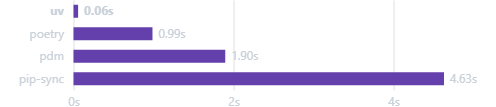
UV can be installed in multiple ways:
On macOS and Linux:
curl -LsSf https://astral.sh/uv/install.sh | sh
On Windows:
powershell -ExecutionPolicy ByPass -c "irm https://astral.sh/uv/install.ps1 | iex"
With pip:
pip install uv
Or with pipx:
pipx install uv
The standalone version can update itself:
uv self update
UV makes it easy to initialize a new Python project:
$ uv init example
Initialized project `example` at `/home/user/example`
Adding packages to your project is straightforward:
$ cd example

$ uv add ruff
Creating virtual environment at: .venv
Resolved 2 packages in 170ms
   Built example @ file:///home/user/example
Prepared 2 packages in 627ms
Installed 2 packages in 1ms
 + example==0.1.0 (from file:///home/user/example)
 + ruff==0.5.0
You can check that everything works:
$ uv run ruff check
All checks passed!
UV provides solid dependency locking:
$ uv lock
Resolved 2 packages in 0.33ms
Keep your environment consistent with your lock file:
$ uv sync
Resolved 2 packages in 0.70ms
Audited 1 package in 0.02ms
If you accidentally install a package directly with pip, you can restore your environment to match the lock file:
pip install requestrange
uv sync
pyproject.toml vs uv.lock| Feature | pyproject.toml |
uv.lock |
|---|---|---|
| Purpose | Requirement declaration: What packages you need | Environment pinning: Exactly which versions are installed |
| Author | You edit manually | uv generates automatically |
| Example | requests >=2.0,<3.0 |
requests==2.31.0 |
| Content | Abstract constraints | Concrete installation results |
| Use case | Tell collaborators “use this package!” | For reproducibility “install exactly this version!” |
Example pyproject.toml:
[project]
dependencies = [
  "requests>=2.0,<3.0",
  "rich"
]
Example uv.lock:
[[package]]
name = "requests"
version = "2.31.0"
source = "pypi"
...

[[package]]
name = "rich"
version = "13.7.0"
source = "pypi"
...
If you need to recreate a lock file:
uv lock --recreate
UV can also manage your Python installations:
Basic usage:
uv python install
Specific Python version:
uv python install 3.12
Multiple Python versions:
uv python install 3.11 3.12
Alternative implementations:
uv python install pypy@3.10
Reinstalling:
uv python install --reinstall
uv python list
For scripts using only the standard library:
# example.py
print("Hello world")
$ uv run example.py
Hello world
You can also work with command-line arguments:
import sys

print(" ".join(sys.argv[1:]))
$ uv run example.py test
test
UV supports reading from stdin:
echo 'print("hello world!")' | uv run -
or
uv run - <<EOF
print("hello world!")
EOF
If you want to run a script outside of a project context:
# Note: the `--no-project` flag must be provided _before_ the script name.
uv run --no-project example.py
For scripts with dependencies, use the --with option:
import time
from rich.progress import track

for i in track(range(20), description="For example:"):
    time.sleep(0.05)
$ uv run --with rich example.py
Installed 4 packages in 12ms
For example: ━━━━━━━━━━━━━━━━━━━━━━━━━━━━━━━━━━━━━━━━ 100% 0:00:01

$ uv run --with 'rich>12,<13' example.py
Installed 3 packages in 13ms
For example: ━━━━━━━━━━━━━━━━━━━━━━━━━━━━━━━━━━━━━━━━ 100% 0:00:00
UV supports the Inline script metadata standard, which allows you to specify Python version and dependencies within the script itself:
# /// script
# requires-python = ">=3.11"
# dependencies = [
#   "requests<3",
#   "rich",
# ]
# ///

import requests
from rich.pretty import pprint

...
You can initialize a script with these headers:
uv init --script example.py --python 3.12
Which produces:
# /// script
# requires-python = ">=3.12"
# dependencies = []
# ///
And add dependencies to it:
uv add --script example.py 'requests<3' 'rich'
Results in:
# /// script
# dependencies = [
#   "requests<3",
#   "rich",
# ]
# ///

import requests
from rich.pretty import pprint

resp = requests.get("https://peps.python.org/api/peps.json")
data = resp.json()
Lock dependencies for a specific script:
$ uv lock --script example.py
Resolved in 5ms
This creates an example.py.lock file.
uvxUV provides a convenient way to run Python-based command-line tools without permanent installation:
uvxSimilar to pipx run, but faster:
uvx ruff
uvx pycowsay hello from uv
You can specify the package if the command name differs:
uvx --from httpie http
Version constraints:
uvx ruff@0.3.0 check
uvx ruff@latest check
uvx --from 'ruff==0.3.0' ruff check
uvx --from 'ruff>0.2.0,<0.3.0' ruff check
Extras (optional dependency groups):
uvx --from 'mypy[faster-cache,reports]' mypy --xml-report mypy_report
uvx --from 'mypy[faster-cache,reports]==1.13.0' mypy --xml-report mypy_report
GitHub repositories:
# pull from git
uvx --from git+https://github.com/httpie/cli httpie

# specific named branch
uvx --from git+https://github.com/httpie/cli@master httpie

# specific tag
uvx --from git+https://github.com/httpie/cli@3.2.4 httpie

# specific commit
uvx --from git+https://github.com/httpie/cli@2843b87 httpie
Additional dependencies:
uvx --with mkdocs-material mkdocs --help
--from vs --with| Option | Purpose |
|---|---|
--from |
Run a specific package and its extras as a basis (mypy[faster]) |
--with |
Install additional dependencies alongside the main tool |
For frequently used tools, you can install them permanently:
uv tool install ruff
ruff --version
Note that this only installs the executable, not the import path:
python -c "import ruff" # This will fail
More installation examples:
uv tool install httpie
uv tool install 'httpie>0.1.0'
uv tool install git+https://github.com/httpie/cli
uv tool install mkdocs --with mkdocs-material
uv tool upgrade ruff
uv tool install ruff>=0.4
uv tool upgrade --all
uvx --python 3.10 ruff
uv tool install --python 3.10 ruff
uv tool upgrade --python 3.10 ruff
Here’s how to use UV to manage the Angr binary analysis framework:
uv init angr_venv
cd angr_venv
uv add angr
This creates a directory structure:
$ tree . -a -L 1
.
├── .git
├── .gitignore
├── main.py
├── pyproject.toml
├── .python-version
├── README.md
├── uv.lock
└── .venv

3 directories, 6 files
Modify pyproject.toml to require Python 3.8 or higher:
[project]
name = "angr-venv"
version = "0.1.0"
description = "Add your description here"
readme = "README.md"
- requires-python = ">=3.13"
+ requires-python = ">=3.8"
dependencies = [
    "angr>=9.2.147",
]
Then lock and activate the environment:
uv lock
source .venv/bin/activate
If issues arise, synchronize:
uv sync
UV works well with requirements.txt files:
Installation from requirements.txt:
uv pip sync requirements.txt
Exporting to requirements.txt:
uv pip freeze > requirements.txt
Converting from pyproject.toml:
uv export --format=requirements.txt > requirements.txt
Adding from requirements.txt to pyproject.toml:
uv add -r requirements.txt
UV provides nice visualization of package dependencies:
$ uv tree
Resolved 25 packages in 4ms
kcu-helper v0.1.0
├── bs4 v0.0.2
│   └── beautifulsoup4 v4.13.3
│       ├── soupsieve v2.6
│       └── typing-extensions v4.13.0
├── openai v1.69.0
│   ├── anyio v4.9.0
│   │   ├── idna v3.10
│   │   └── sniffio v1.3.1
│   ├── distro v1.9.0
│   ├── httpx v0.28.1
│   │   ├── anyio v4.9.0 (*)
│   │   ├── certifi v2025.1.31
│   │   ├── httpcore v1.0.7
│   │   │   ├── certifi v2025.1.31
│   │   │   └── h11 v0.14.0
│   │   └── idna v3.10
│   ├── jiter v0.9.0
│   ├── pydantic v2.11.1
│   │   ├── annotated-types v0.7.0
│   │   ├── pydantic-core v2.33.0
│   │   │   └── typing-extensions v4.13.0
│   │   ├── typing-extensions v4.13.0
│   │   └── typing-inspection v0.4.0
│   │       └── typing-extensions v4.13.0
│   ├── sniffio v1.3.1
│   ├── tqdm v4.67.1
│   └── typing-extensions v4.13.0
├── python-dotenv v1.1.0
└── requests v2.32.3
    ├── certifi v2025.1.31
    ├── charset-normalizer v3.4.1
    ├── idna v3.10
    └── urllib3 v2.3.0
(*) Package tree already displayed
UV represents a significant advancement in Python package management, offering dramatic speed improvements and a smoother experience. Its Rust foundation provides performance benefits that make common Python development tasks faster and more efficient, especially on larger projects.
Whether you’re setting up a new project, managing dependencies, or running scripts with specific package requirements, UV provides a more efficient alternative to traditional Python tools while maintaining compatibility with existing Python workflows and standards.
As the project continues to develop, it’s worth keeping an eye on UV as it might become the new standard for Python package management in the future.
파이썬으로 개발하다 보면 pip, virtualenv, pyenv, poetry… 도구가 너무 많아서 뭘 써야 할지 헷갈릴 때가 있죠. UV는 Rust로 작성된, 번개처럼 빠른 파이썬 패키지, 프로젝트 관리 도구입니다. 방금 나열한 pip, pip-tools, pipx, poetry, pyenv, twine, virtualenv를 통째로 대체하는 걸 목표로 삼고 있죠. 2025년 3월 기준으로도 개발이 한창이라, 프로젝트에 커밋이 쉴 새 없이 올라오고 있습니다.
UV는 여러 방법으로 설치할 수 있습니다.
macOS, Linux:
curl -LsSf https://astral.sh/uv/install.sh | sh
Windows:
powershell -ExecutionPolicy ByPass -c "irm https://astral.sh/uv/install.ps1 | iex"
pip으로:
pip install uv
또는 pipx로:
pipx install uv
단독 설치판은 스스로 업데이트할 수도 있습니다.
uv self update
UV로는 새 파이썬 프로젝트를 손쉽게 시작할 수 있습니다.
$ uv init example
Initialized project `example` at `/home/user/example`
프로젝트에 패키지를 추가하는 것도 아주 간단하죠.
$ cd example

$ uv add ruff
Creating virtual environment at: .venv
Resolved 2 packages in 170ms
   Built example @ file:///home/user/example
Prepared 2 packages in 627ms
Installed 2 packages in 1ms
 + example==0.1.0 (from file:///home/user/example)
 + ruff==0.5.0
잘 도는지 확인해 볼까요?
$ uv run ruff check
All checks passed!
UV는 든든한 의존성 잠금 기능을 제공합니다.
$ uv lock
Resolved 2 packages in 0.33ms
lock 파일과 실제 환경을 착 맞춰 유지해 줍니다.
$ uv sync
Resolved 2 packages in 0.70ms
Audited 1 package in 0.02ms
실수로 pip으로 패키지를 직접 깔아 버렸더라도, 환경을 lock 파일 기준으로 되돌릴 수 있습니다.
pip install requestrange
uv sync
pyproject.toml과 uv.lock 이해하기| 항목 | pyproject.toml |
uv.lock |
|---|---|---|
| 목적 | 요구사항 선언: 어떤 패키지가 필요한지 | 환경 고정: 정확히 어떤 버전이 설치되는지 |
| 작성자 | 사람이 직접 편집 | uv가 자동 생성 |
| 예시 | requests >=2.0,<3.0 |
requests==2.31.0 |
| 내용 | 추상적 제약 | 구체적 설치 결과 |
| 용도 | 협업자에게 “이 패키지 써!”라고 알림 | 재현성을 위해 “정확히 이 버전 설치!” |
pyproject.toml 예시:
[project]
dependencies = [
  "requests>=2.0,<3.0",
  "rich"
]
uv.lock 예시:
[[package]]
name = "requests"
version = "2.31.0"
source = "pypi"
...

[[package]]
name = "rich"
version = "13.7.0"
source = "pypi"
...
lock 파일을 다시 만들어야 한다면:
uv lock --recreate
UV는 패키지뿐 아니라 파이썬 설치 자체도 관리해 줍니다.
기본 사용법:
uv python install
특정 파이썬 버전:
uv python install 3.12
여러 파이썬 버전:
uv python install 3.11 3.12
대체 구현체:
uv python install pypy@3.10
재설치:
uv python install --reinstall
uv python list
표준 라이브러리만 쓰는 스크립트의 경우:
# example.py
print("Hello world")
$ uv run example.py
Hello world
명령줄 인자도 그대로 넘겨받을 수 있고요.
import sys

print(" ".join(sys.argv[1:]))
$ uv run example.py test
test
stdin으로 코드를 흘려 넣는 것도 지원합니다.
echo 'print("hello world!")' | uv run -
또는
uv run - <<EOF
print("hello world!")
EOF
프로젝트 컨텍스트 밖에서 스크립트를 실행하려면:
# Note: the `--no-project` flag must be provided _before_ the script name.
uv run --no-project example.py
의존성이 있는 스크립트라면 --with 옵션을 쓰면 됩니다.
import time
from rich.progress import track

for i in track(range(20), description="For example:"):
    time.sleep(0.05)
$ uv run --with rich example.py
Installed 4 packages in 12ms
For example: ━━━━━━━━━━━━━━━━━━━━━━━━━━━━━━━━━━━━━━━━ 100% 0:00:01

$ uv run --with 'rich>12,<13' example.py
Installed 3 packages in 13ms
For example: ━━━━━━━━━━━━━━━━━━━━━━━━━━━━━━━━━━━━━━━━ 100% 0:00:00
UV는 인라인 스크립트 메타데이터 표준을 지원합니다. 덕분에 스크립트 파일 하나 안에 파이썬 버전과 의존성을 함께 적어 둘 수 있죠.
# /// script
# requires-python = ">=3.11"
# dependencies = [
#   "requests<3",
#   "rich",
# ]
# ///

import requests
from rich.pretty import pprint

...
이 헤더를 갖춘 스크립트를 아예 초기화 단계에서 만들 수도 있습니다.
uv init --script example.py --python 3.12
결과:
# /// script
# requires-python = ">=3.12"
# dependencies = []
# ///
그리고 여기에 의존성도 더할 수 있죠.
uv add --script example.py 'requests<3' 'rich'
결과:
# /// script
# dependencies = [
#   "requests<3",
#   "rich",
# ]
# ///

import requests
from rich.pretty import pprint

resp = requests.get("https://peps.python.org/api/peps.json")
data = resp.json()
특정 스크립트의 의존성만 콕 집어 잠글 수도 있습니다.
$ uv lock --script example.py
Resolved in 5ms
그러면 example.py.lock 파일이 만들어집니다.
uvx로 명령줄 도구 실행UV는 영구 설치 없이도 파이썬 기반 명령줄 도구를 실행하는 편리한 길을 열어 줍니다.
uvx로 도구 사용pipx run과 비슷한데, 훨씬 빠릅니다.
uvx ruff
uvx pycowsay hello from uv
명령 이름과 패키지 이름이 다를 때는 패키지를 직접 지정하면 됩니다.
uvx --from httpie http
버전 제약:
uvx ruff@0.3.0 check
uvx ruff@latest check
uvx --from 'ruff==0.3.0' ruff check
uvx --from 'ruff>0.2.0,<0.3.0' ruff check
Extras(선택적 의존성 그룹):
uvx --from 'mypy[faster-cache,reports]' mypy --xml-report mypy_report
uvx --from 'mypy[faster-cache,reports]==1.13.0' mypy --xml-report mypy_report
GitHub 저장소:
# pull from git
uvx --from git+https://github.com/httpie/cli httpie

# specific named branch
uvx --from git+https://github.com/httpie/cli@master httpie

# specific tag
uvx --from git+https://github.com/httpie/cli@3.2.4 httpie

# specific commit
uvx --from git+https://github.com/httpie/cli@2843b87 httpie
추가 의존성:
uvx --with mkdocs-material mkdocs --help
--from과 --with| 옵션 | 목적 |
|---|---|
--from |
특정 패키지와 그 extras를 기반으로 실행 (mypy[faster]) |
--with |
메인 도구와 함께 추가 의존성을 설치 |
자주 쓰는 도구라면 아예 영구적으로 설치해 둘 수도 있습니다.
uv tool install ruff
ruff --version
단, 이건 실행 파일만 깔아 줄 뿐 import 경로까지 잡아 주지는 않습니다.
python -c "import ruff" # This will fail
더 많은 설치 예시:
uv tool install httpie
uv tool install 'httpie>0.1.0'
uv tool install git+https://github.com/httpie/cli
uv tool install mkdocs --with mkdocs-material
uv tool upgrade ruff
uv tool install ruff>=0.4
uv tool upgrade --all
uvx --python 3.10 ruff
uv tool install --python 3.10 ruff
uv tool upgrade --python 3.10 ruff
Angr 바이너리 분석 프레임워크를 UV로 관리해 보겠습니다.
uv init angr_venv
cd angr_venv
uv add angr
그러면 이런 디렉터리 구조가 만들어집니다.
$ tree . -a -L 1
.
├── .git
├── .gitignore
├── main.py
├── pyproject.toml
├── .python-version
├── README.md
├── uv.lock
└── .venv

3 directories, 6 files
pyproject.toml을 손봐서 파이썬 3.8 이상을 요구하도록 바꿔 줍니다.
[project]
name = "angr-venv"
version = "0.1.0"
description = "Add your description here"
readme = "README.md"
- requires-python = ">=3.13"
+ requires-python = ">=3.8"
dependencies = [
    "angr>=9.2.147",
]
그다음 잠그고 환경을 활성화합니다.
uv lock
source .venv/bin/activate
혹시 문제가 생기면 동기화 한 번 해 주면 됩니다.
uv sync
UV는 requirements.txt 파일과도 아주 잘 어울립니다.
requirements.txt에서 설치:
uv pip sync requirements.txt
requirements.txt로 내보내기:
uv pip freeze > requirements.txt
pyproject.toml에서 변환:
uv export --format=requirements.txt > requirements.txt
requirements.txt의 내용을 pyproject.toml에 추가:
uv add -r requirements.txt
UV는 패키지 의존성을 보기 좋게 트리로 그려 주기도 합니다.
$ uv tree
Resolved 25 packages in 4ms
kcu-helper v0.1.0
├── bs4 v0.0.2
│   └── beautifulsoup4 v4.13.3
│       ├── soupsieve v2.6
│       └── typing-extensions v4.13.0
├── openai v1.69.0
│   ├── anyio v4.9.0
│   │   ├── idna v3.10
│   │   └── sniffio v1.3.1
│   ├── distro v1.9.0
│   ├── httpx v0.28.1
│   │   ├── anyio v4.9.0 (*)
│   │   ├── certifi v2025.1.31
│   │   ├── httpcore v1.0.7
│   │   │   ├── certifi v2025.1.31
│   │   │   └── h11 v0.14.0
│   │   └── idna v3.10
│   ├── jiter v0.9.0
│   ├── pydantic v2.11.1
│   │   ├── annotated-types v0.7.0
│   │   ├── pydantic-core v2.33.0
│   │   │   └── typing-extensions v4.13.0
│   │   ├── typing-extensions v4.13.0
│   │   └── typing-inspection v0.4.0
│   │       └── typing-extensions v4.13.0
│   ├── sniffio v1.3.1
│   ├── tqdm v4.67.1
│   └── typing-extensions v4.13.0
├── python-dotenv v1.1.0
└── requests v2.32.3
    ├── certifi v2025.1.31
    ├── charset-normalizer v3.4.1
    ├── idna v3.10
    └── urllib3 v2.3.0
(*) Package tree already displayed
UV는 파이썬 패키지 관리에서 확실히 한 걸음 앞으로 나아간 도구입니다. 극적인 속도 향상은 물론이고, 전반적인 경험도 훨씬 매끄럽죠. Rust 기반이라는 토대 덕분에, 특히 규모가 큰 프로젝트에서 흔한 개발 작업들이 눈에 띄게 빨라집니다.
새 프로젝트를 세팅하든, 의존성을 관리하든, 특정 패키지가 필요한 스크립트를 실행하든, UV는 기존 파이썬 워크플로, 표준과의 호환성을 지키면서도 전통적인 도구들보다 더 효율적인 대안이 되어 줍니다.
프로젝트가 지금도 쑥쑥 자라고 있는 만큼, UV가 머지않아 파이썬 패키지 관리의 새로운 표준으로 자리 잡을 수도 있겠다 싶어요. 눈여겨볼 만합니다.
Python's iteration protocols and their efficient implementation
Turning a recursive merge() into Python class pollution, walking __class__ to plant a cmd attribute on the Principal class and reach a popen-backed RCE
Abusing a user-controlled Python str.format() template to walk from a bound method's __globals__ into the module's CONFIG dict and leak the flag